Video editing for social media
Shape social videos in Video Studio
Review a reel, refine its timeline, and prepare music, voiceover, and captions in one editing workspace. Preview changes before rendering, then explicitly apply the finished version to your post.
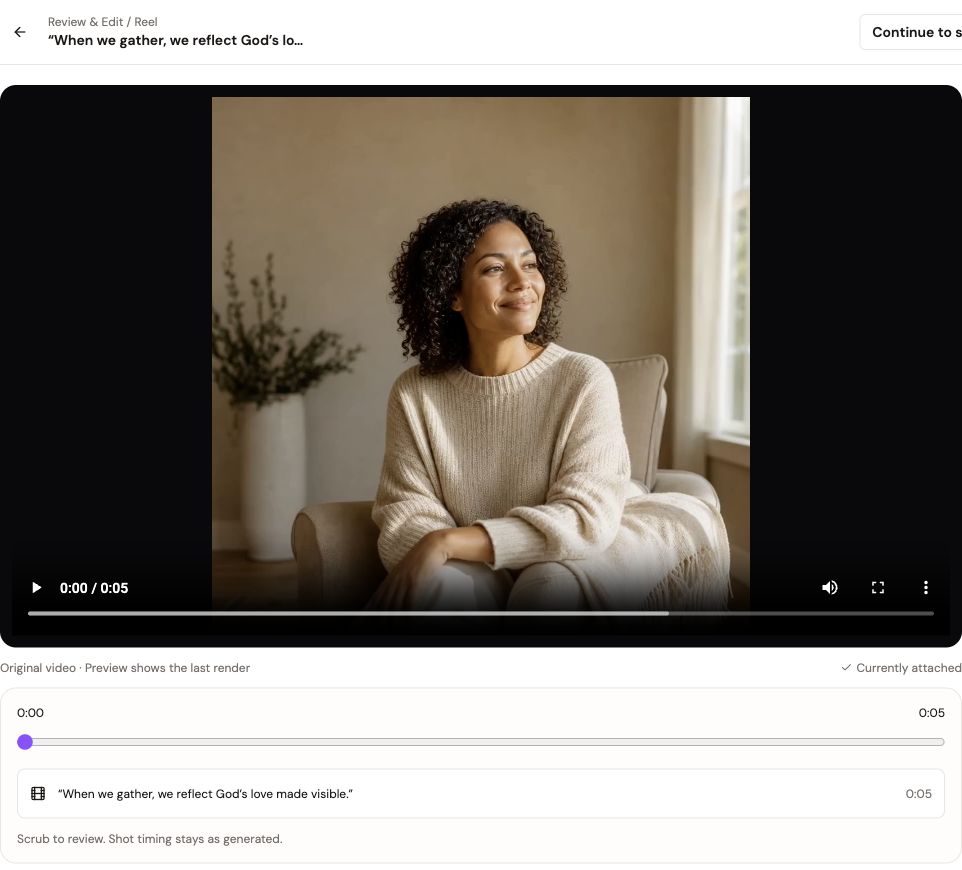
A practical walkthrough
How to use Video Studio
- 1
Open a reel
Choose an unpublished reel from the scheduler or open Video Studio to start a new video.
- 2
Review the footage
Play the source and scrub the timeline to inspect the existing shots and timing.
- 3
Make and preview edits
Arrange supported timeline items and adjust music, voiceover, or captions. Preview the changes before rendering.
- 4
Render and apply
Review the render cost and confirm before rendering. Apply the completed version when you are ready to use it in the post.
Tools for a more considered post
Timeline-based editing
Work with video, image, text, and audio elements while keeping visual order separate from shot playback timing.
Music, voiceover, and captions
Open focused editing tabs for the parts of a reel that need attention, then return to the film to review the result.
Local preview, deliberate render
Preview timeline changes in the editor. A preview is not an export; rendering and applying a changed version remain explicit steps.
Keep the original safe
The source footage remains available while you review edits and rendered versions.
Video Studio FAQs
Does a Video Studio preview create a finished video?+
No. The timeline preview helps you review edits locally. A changed version must be rendered and explicitly applied before it becomes the post media.
When are Fire Credits used?+
Rendering uses credits. The app shows the render cost for confirmation before starting the render.
Can I edit an already published reel?+
Published reels are view-only. Unpublished reel drafts can be opened in the editing workspace.
Create, review, and publish from one workspace
Use the studio alongside your content calendar to prepare media, review the post, and choose when it is ready to publish.