Photo editing for social media
Create polished social images in Photo Studio
Crop a photo for its destination, refine its look, and add editable text, shapes, and brand assets. Review the composition on the canvas before saving it to your post or media library.
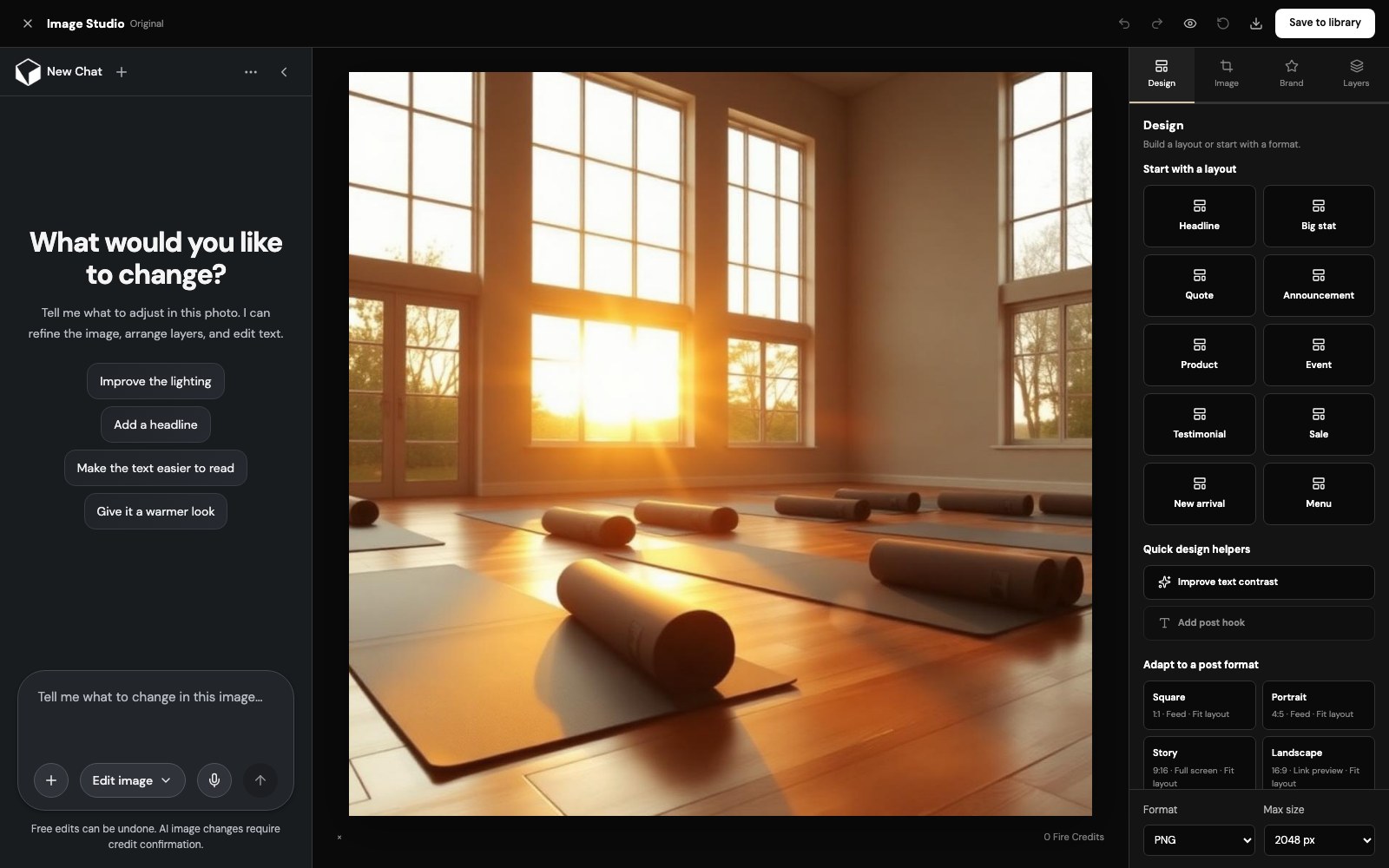
A practical walkthrough
How to use Photo Studio
- 1
Open a photo
Choose a photo from your media library or upload one from your device.
- 2
Set the crop
Choose an aspect ratio, reposition the image, and adjust the framing for the post you are preparing.
- 3
Build the composition
Add text, shapes, gradients, or image and brand-logo layers. Select and arrange layers on the canvas.
- 4
Review and save
Preview the composition, use Undo to revisit free edits, then save the finished image to the post or library.
Tools for a more considered post
Crop and image adjustments
Set a social-friendly aspect ratio and refine the image without changing the original media.
Editable layers
Add and arrange text, shapes, gradients, and image assets as separate canvas layers.
Brand-ready designs
Use brand colors and available brand assets to create a consistent look across posts.
Preview before saving
The canvas preview and exported image use the same renderer, so the saved composition matches what you reviewed.
Photo Studio FAQs
Can I edit a photo without changing the original?+
Yes. Photo Studio builds a reversible canvas composition. Saving creates a flattened copy for the post or library, while your source image remains available.
Can I add text and a logo to a photo?+
Yes. Add text, shapes, gradients, images, and brand-logo layers, then position and arrange them on the canvas.
Do photo edits use AI credits?+
Canvas edits such as crop, text, and shapes are local editing actions. AI image changes require credit confirmation before they run.
Create, review, and publish from one workspace
Use the studio alongside your content calendar to prepare media, review the post, and choose when it is ready to publish.